 rhomlet.
Workflow guide
Paint pixel-art normal maps and preview lighting
Rhomlet stores a normal map beside each color layer. Normals are surface directions, encoded as colors, so a game engine — or Rhomlet’s lighting preview — can relight the same pixels. That is not automatic image generation: the sprite still has to exist as color artwork first.
1. Draw the color sprite first
Normals describe existing color pixels. Painting on empty space does not create visible artwork. Finish the silhouette and local color on a layer, then switch channels.
2. Generate directions from geometry, or paint them
- Select the layer, then choose Normals from the Palette panel’s channel dropdown.
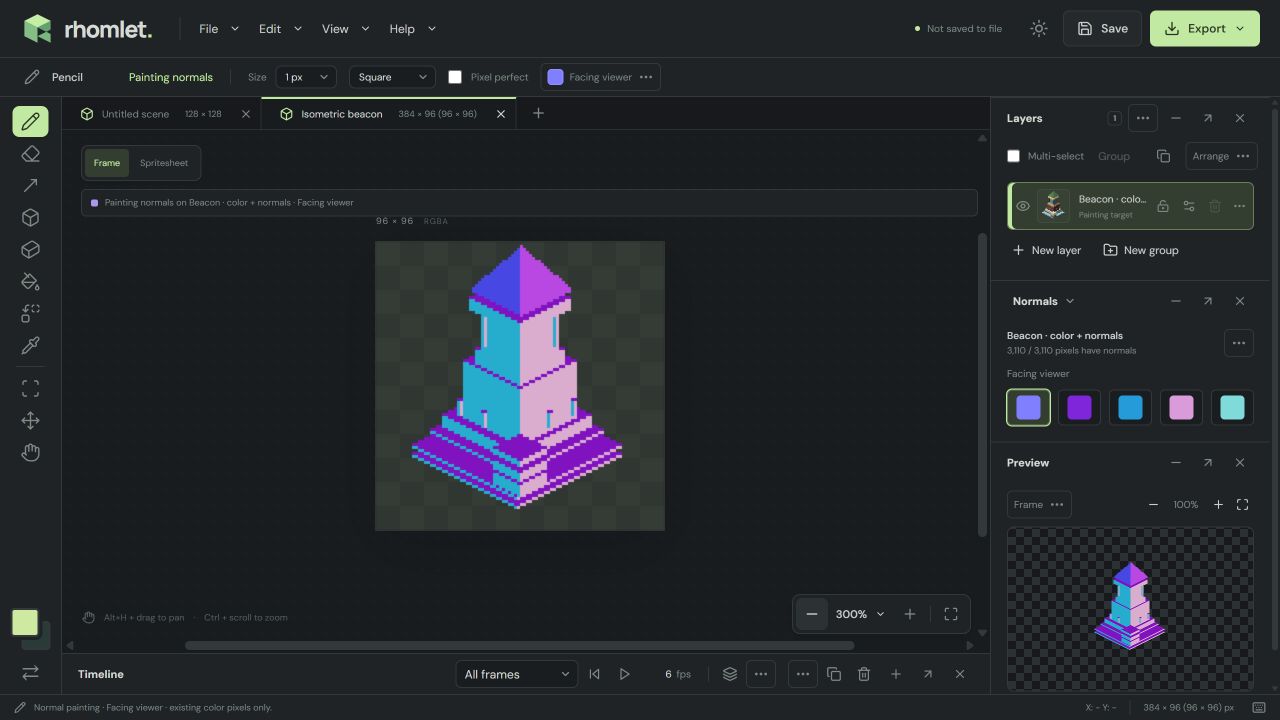
- Pick a labeled direction in the Normals inspector and paint with Pencil, Fill, Line, or isometric line tools. Alt-click samples a stored direction.
- Shapes can write generated surface directions from their geometry. In Color mode, enable Create surface normals if you want that write alongside the pixels. 3D primitive can do the same, including a normals-only mode that paints directions onto existing pixels.
- Eraser clears stored normals; those pixels fall back to Facing viewer.
Generated normals follow the shape or cuboid you placed. They will not invent a drawing from a prompt, and they will not replace hand-painted color.
3. Preview the light
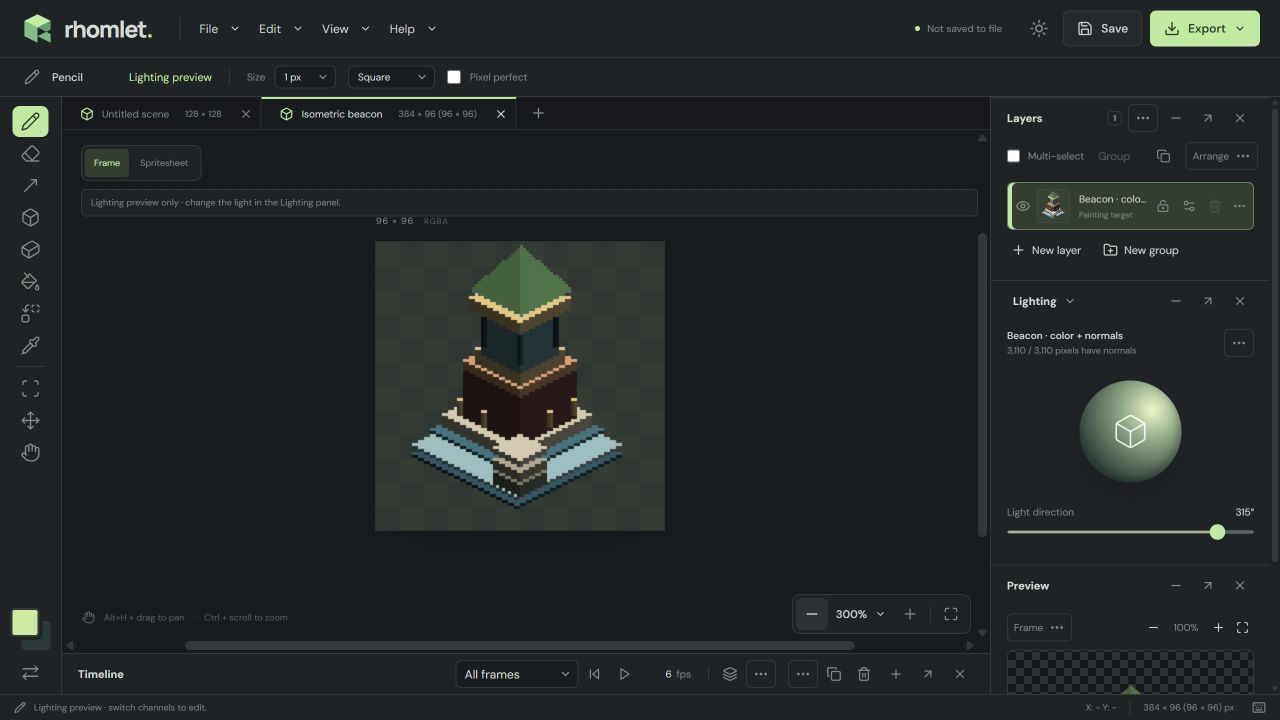
Choose Lighting and drag the light direction. Coverage is reported in the inspector. Shift+N shows a color reference overlay while you paint. Lighting is a preview: switch back to Color or Paint normals to edit. Disable Shade surfaces on shapes when you want neutral color plus an adjustable normal map, instead of baked shade.
4. Save and export the map
A Rhomlet project keeps both color and normal channels. For PNG, GIF, or ZIP output, enable Export normal map. Artwork without painted normals exports with the default Facing viewer direction. Continue with sprite sheet export if the asset is animated, or return to isometric construction if the silhouette still needs work.